
Guide · Recording
How to Record
a DJ Mix in 2026
Whether you’re playing off a controller at home or a club mixer in a venue, there’s a recording method that fits your setup. Here’s how each one works.
Short version: If you’re on a controller with DJ software, just hit the record button — every major platform has one. In a club, plug a recorder or phone into the mixer’s record out, not the booth or master. For standalone recording, the Reloop Tape 2 is the simplest option. Upload to Mixcloud for legal mix hosting; SoundCloud for clips and promos.
Recording your DJ mix matters for a few reasons: you want to listen back and identify what worked and what didn’t, you need a demo to send to promoters, or you want to build an online presence on Mixcloud or SoundCloud. The method you use depends entirely on your setup — and the options in 2026 are cleaner and more varied than they’ve ever been.
This guide covers every recording scenario in practical order, from the simplest (hit record in your software) to the more involved (recording in a club from a mixer you don’t own).
If you’re playing on a controller with DJ software, this is the obvious starting point. Every major platform has a built-in recorder, and the quality is good enough for demos, online uploads, and personal review. No extra hardware required.
| Software | Where to find it | Format | Notes |
|---|---|---|---|
| Serato DJ Pro | Recording panel in main UI | WAV or AIFF (16-bit or 24-bit) | 2GB file limit per recording — roughly 3 hours at 16-bit/44.1kHz. Long sets split automatically. |
| rekordbox | [REC] button — top-left of the global header bar | WAV (44.1kHz, 16-bit) | Central recording dashboard appears in the middle of the UI once REC is toggled. Adjust gain there before starting. |
| Traktor Pro 4 | Cassette icon — set source in Preferences first | WAV | Set source to Internal or External, choose destination and filename prefix. File splitting size also configurable. |
| VirtualDJ | Record section/panel | MP3, OGG, FLAC, WAV (audio) · WEBM, MP4 (video) | The only platform that records video mixes natively to MP4 — no OBS or capture card needed. MP3 defaults to 192kbps. |
For most home practice and demo recording, software recording is the right answer. The output quality is identical to what you’re mixing — no signal degradation, no extra cables, no additional gear. Save as WAV for anything you’re uploading or sending to promoters; the uncompressed file gives you the most flexibility in post.
When you’re not on a controller with software, the recording signal comes from the mixer. The output you choose matters — and most people choose the wrong one.
Record out, booth out, master out — what’s the difference
Always use the record out if the mixer has one. It’s a fixed-level feed that bypasses both the master and booth volume controls — meaning you can push the master to fill the room or adjust booth monitors without it affecting your recording level at all. Booth out has its own volume knob, so if you turn your monitors up mid-set, your recording level rises with it. Master out follows the main PA, which causes the same problem.
Most outputs on club mixers are RCA — the red and white cables. You connect from the mixer’s record out RCAs into whatever you’re recording to: a standalone recorder, an audio interface, or a phone via an adapter.
DJM-REC app — recording from Pioneer/AlphaTheta mixers
The cleanest modern workflow for recording from a club mixer is Pioneer’s DJM-REC app. On compatible mixers — including the DJM-900NXS2, DJM-A9, and DJM-V10 — connect a USB cable from the mixer’s send/return port to your iPhone or iPad. The DJM-REC app captures the mix in 24-bit audio and lets you upload directly to Mixcloud, SoundCloud, or Dropbox when you’re done. No additional hardware, no extra cables beyond a USB.
This has effectively replaced the older workflow of carrying a separate recorder to club gigs — if the venue runs a compatible Pioneer mixer, your phone is the recorder.
All-in-one standalone units
The XDJ-XZ, AlphaTheta XDJ-AZ, and OPUS-QUAD all have a dedicated MASTER REC button that records directly to a second USB thumb drive plugged into the unit. No phone, no app, no laptop — press the button and the set is captured. If you play on standalones regularly, this is worth knowing about.
Standalone recorders connect to the mixer’s record out via RCA and capture the audio independently of any laptop or phone app. They’re the most portable, setup-agnostic option — useful if you regularly play on different systems and want a consistent recording workflow regardless of what’s in the booth.
Reloop Tape 2
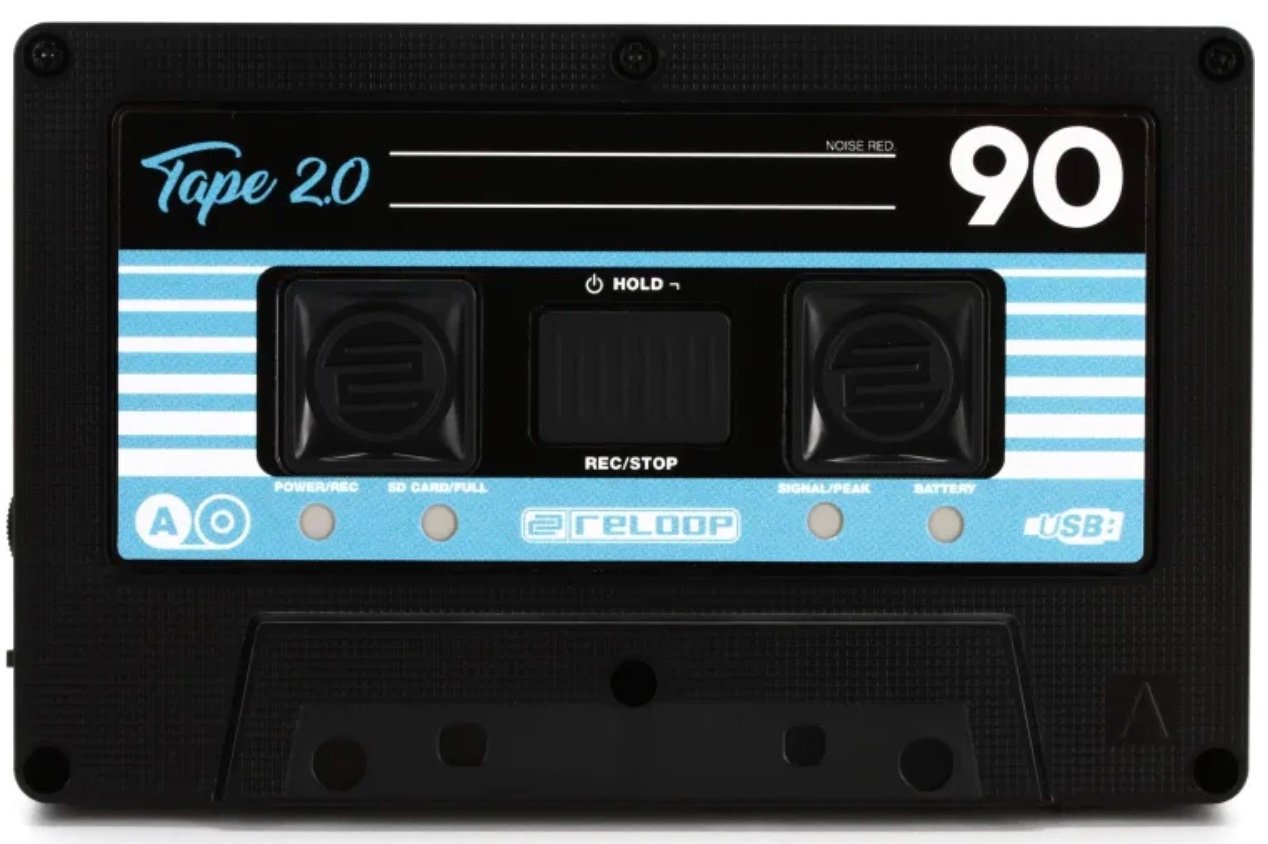
The Reloop Tape 2 is the most straightforward standalone recorder in the current market and the easiest to recommend. It records in 24-bit WAV to a micro SD card, runs on internal rechargeable batteries, and connects via a simple RCA to mini-jack cable from the mixer. No app, no phone, no configuration — plug in, press record, play your set.
Transferring files is equally simple: connect the unit to your computer via USB and drag the files across. The unit acts as a basic audio interface for the transfer, so no card reader needed. The front panel has an input level dial and a basic LED meter, which is all you actually need in a booth context.
If you want clean, reliable, hardware-only mix recording without any dependencies, this is the right tool.
Check Reloop Tape 2 Price →DJs who want dead-simple hardware recording without phone apps or laptops. Works with any mixer that has a record or booth out.
Evermixbox5
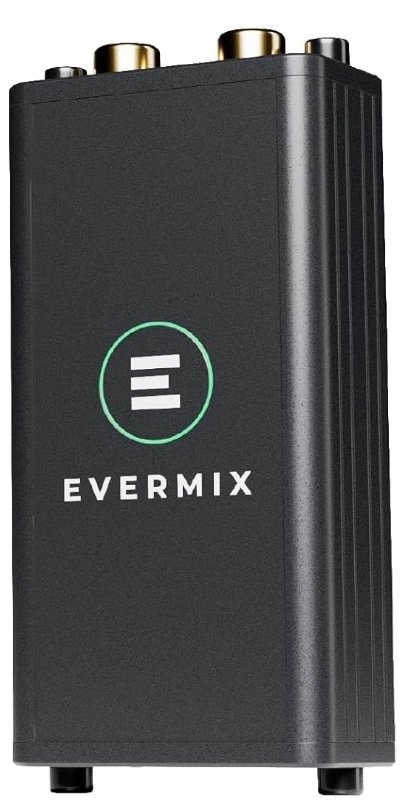
The original Evermix Box went away for a few years — the company folded during the supply chain problems of 2023. It’s back under new ownership with the Evermixbox5, launched in late 2025. The core workflow is the same as the original: connect the box to your mixer’s record out via RCA, connect to your phone, and record directly to the app. From there you can tag and upload straight to Mixcloud or save to Dropbox.
The 2025 version adds a forthcoming Evermix Pro app designed for simultaneous recording and live streaming to TikTok and YouTube — which puts it in a different category from a pure recording device. If that workflow interests you, it’s worth keeping an eye on. For straightforward recording and Mixcloud upload, the Evermixbox5 does the same job it always did, now on updated hardware.
No Amazon affiliate link available for this one — check the Evermix website directly for current pricing and availability.
DJs who want to record to phone and upload directly to Mixcloud in one workflow, or who are interested in live streaming capability as it develops.
External audio interface — use what you already have
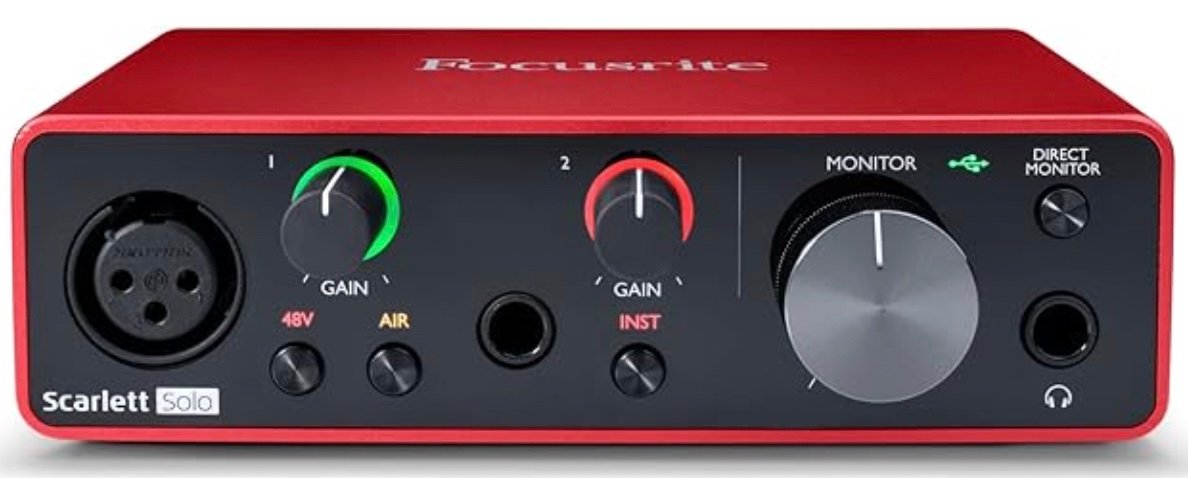
If you already own an audio interface — a Focusrite Scarlett 2i2 is the most common — you can use it to record your DJ mix without buying anything else. Connect the mixer’s record out (RCA) to the interface’s line inputs via an RCA-to-jack cable, connect the interface to your computer via USB, and record in Audacity (free), Ableton Live, Logic, or any DAW.
This is the highest-quality recording option available because you’re capturing the signal through dedicated audio hardware directly into your recording software, where you can also apply light mastering (EQ, limiting, normalisation) before exporting. The trade-off is portability — this setup doesn’t travel well, and taking a laptop to a club gig isn’t always practical or desirable.
For home recording or studio-quality demos, it’s the best option if you have the gear. For gigging, use the Reloop Tape 2 or DJM-REC app instead.
Check Focusrite Scarlett Price →Home recording with studio-quality output. Use existing kit rather than buying a dedicated recorder — and apply light mastering before you upload.
Once you have a recording you’re happy with, the question is where to put it. Two platforms dominate DJ mix hosting — and they serve different purposes.
Mixcloud is built specifically for DJ mixes and has a blanket licence that automatically pays royalties to artists, labels, and publishers. Uploading a commercial mix to Mixcloud is legal by design — the licensing is handled on the platform’s end. The free tier caps you at 10 published shows longer than 15 minutes; older sets get moved to drafts if you hit 11 without upgrading to Mixcloud Pro. The platform isn’t currently profitable by the CEO’s own admission, which is worth keeping in mind as a long-term home for your archive.
SoundCloud doesn’t have a blanket mix licence. Commercial mixes uploaded there are vulnerable to copyright strikes and automated takedowns from rights holders — something that happens regularly. SoundCloud is useful for short clips, edits, originals, and promos, but it’s not a safe home for full DJ mixes featuring commercial music.
The practical split: upload full mixes to Mixcloud, use SoundCloud for shorter promotional content and original productions.
Quick reference — which method is right for you
| Your setup | Best recording method | What you need |
|---|---|---|
| Controller + laptop | Record in DJ software | Nothing — already built in |
| Club mixer (DJM-900NXS2 / A9 / V10) | DJM-REC app | iPhone/iPad + USB cable |
| XDJ-XZ / XDJ-AZ / OPUS-QUAD | MASTER REC to USB drive | Second USB thumb drive |
| Any mixer — portable / club | Reloop Tape 2 | RCA to mini-jack cable + micro SD |
| Any mixer — phone workflow | Evermixbox5 | Evermixbox5 unit + phone |
| Home studio setup | Audio interface + DAW | Focusrite Scarlett + Audacity (free) |
One rule that covers every scenario
Whatever method you use, always record from the mixer’s record out rather than booth or master if one is available. It’s a fixed-level signal that stays consistent regardless of what you do to the room volume during the set. That single habit will save you from the most common recording problem — a level that creeps or clips because the master got pushed mid-set.
For listening back and improving, software recording is fine. For demos, aim for WAV rather than MP3. For gigging, know which method your regular venue supports before you arrive.